
Grading: How to Approve a Change of Grade Request for Approvers
This guide provides instructions for approvers to review, input a decision, and submit a Change of Grade Requests submitted through RamPortal.
| Contents |
|---|
| Getting Started: Access Your Requests |
| Option 1: Approve via Email Notification |
| Option 2: Approve via RamPortal Change of Grade Current Tasks Card |
| Approval Routing for Pre-Fall 2024 Grades |
Getting Started: Access Your Requests
You can access requests that are waiting your approval in two ways:
- Use the link in the email notification OR
- Use the Change of Grade Current Tasks card in RamPortal.
Option 1: Approve via Email Notification
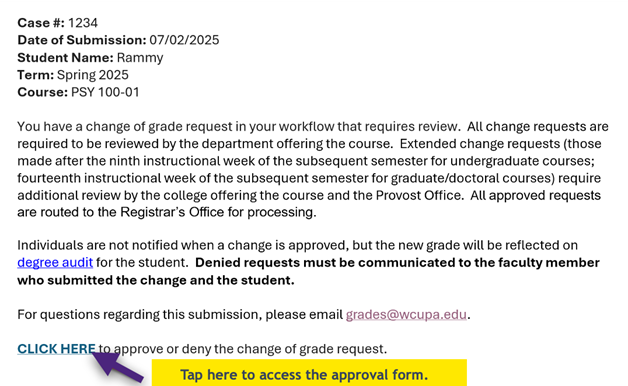
Approvers will receive an email when a grade change request is ready for your review. The message includes a link to access the approval form.
- Open the email notification and click the CLICK HERE link at the bottom of the message.
- Review the request details.
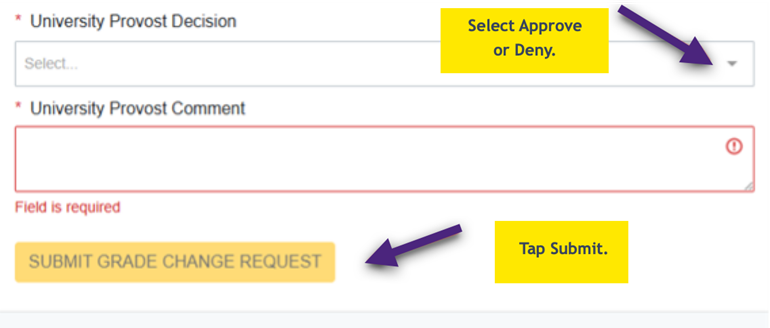
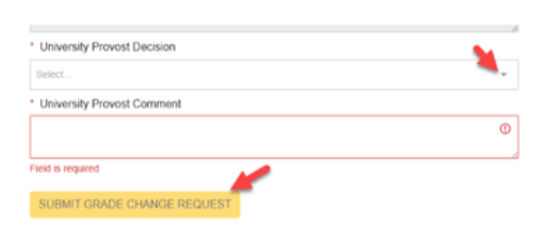
- Scroll to the Approval section at the bottom of the form and choose either Approve or Deny in the decision drop down. If you deny the request, a comment is required.
- Tap Submit Grade Change Request.
Option 2: Approve Via RamPortal Change of Grade Current Tasks Card
Use this option if you prefer to access all your pending requests from your RamPortal homepage.
- Login to RamPortal using your WCU Single Sign On (SSO) at ramportal.wcupa.edu.
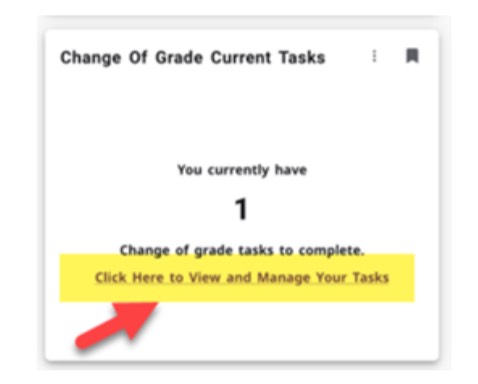
- Locate the Change of Grade Current Tasks card. If it is not on your homepage, click on View All Cards and type grades in the Find Cards search bar.

- Click on the bookmark icon on the card to save it to your favorites.
- To access your current tasks, select Click Here to View and Manage Your Tasks.
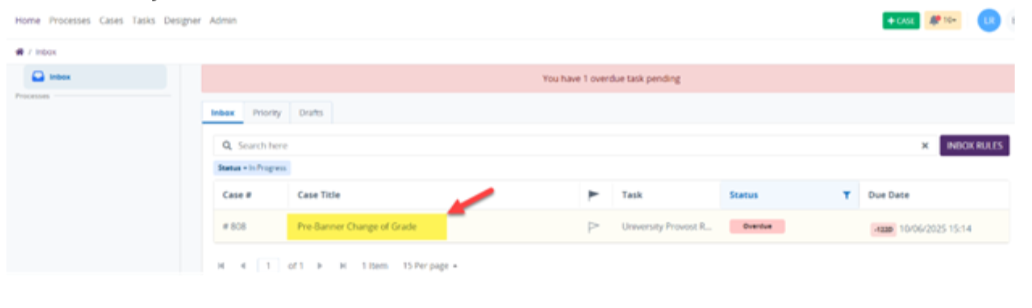
- The inbox will open. Click on the form name to open the form which will be ready
for decision entry.
- Review the request details on the form.
- Select either Approve or Deny from the Decision dropdown. If you deny the request, a comment is required.
- Click on the Submit Grade Change Request button to finish.
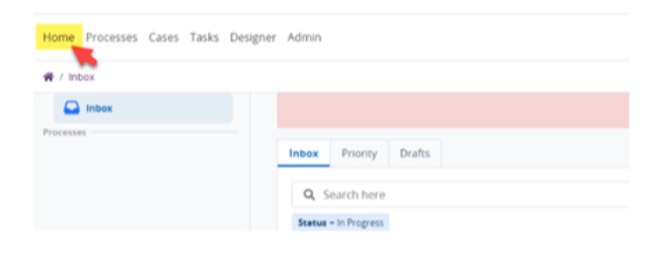
Tip: If at any time the inbox is not shown after decision submission, click on the Home button to refresh the inbox.
*Note:
The above example is specific to Provost Approvers, however Chairperson and Dean Approver experiences will be similar.
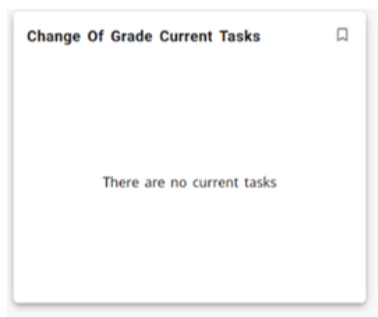
If there are no pending requests awaiting approval, the Change of Grade Current Tasks card will display the message There are no current tasks.
Approval Routing for Pre-Fall 2024 Grades
All grade change requests for grades prior to Fall 2024 will need to be approved by the Dean of the course’s College and approved by the Special Assistant to the Provost because of the age of the grade. The workflow approver order is Chairperson of course’s department, Dean of course’s College, Special Assistant to Provost for the Student’s Level.
For support, please submit a ticket.