
Degree Audit: Self Service Petitions
Last edit date: 4/07/2026
Audience: Department Chairs and Graduate Coordinators
Purpose: This tool is intended to be used by chairs and graduate coordinators to offer major/minor exceptions to students in their program. Chairs and graduate coordinators can now enter their exception petitions directly into the Degree Audit. These requests will workflow to the Registrar’s Office and post directly into the degree audit for students to see. This should only be used for major/minor exceptions. It should not be for general education or other degree requirement exceptions, and not to report an error in the audit.
This replaces the previous Microsoft Office form.
| Contents |
|---|
| Navigation Option 1: Degree Audit Card |
| Navigation Option 2: Student Profile |
| Completing Degree Audit Petition |
Navigation Option 1: Degree Audit Card
- Log into RamPortal using your WCU Single Sign On (SSO).
- Locate the Degree Audit card on your home page (see Fig 1).
- Click the Degree Audit button.
- Enter the student’s ID in the Student ID field (see Fig 2).
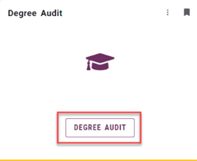
Fig 1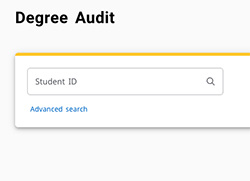
Fig 2
Navigation Option 2: Student Profile
- Locate the Faculty Center card on your home page.
- Select My Advisee Information and choose View Student Profiles and List of Advisees in the dropdown (see Fig 3).
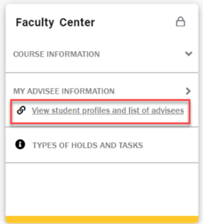
Fig 3 - Select a Term from the dropdown.
- Search for the advisee using their ID, email, or name and click View Profile.
- From the Student Profile page, select Degree Audit from the left-hand menu.
Completing Degree Audit Petition
- Once on the student’s Degree Audit, go to the three vertical dots in the upper right-hand corner (see Fig 4).
- From the drop down, select Petitions (see Fig 4).
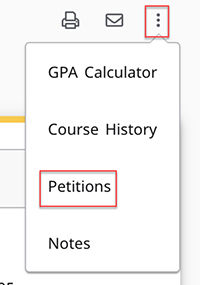
Fig 4 - You will see all petitions listed for a student. If there are none, you will see a message stating “There are no petitions for this student.”
- To create a new petition, click Add a New Petition (see Fig 5).
- Type the petition in the text box and click Save. Please note, the text for the petition will be visible to students and all Degree Audit Users.
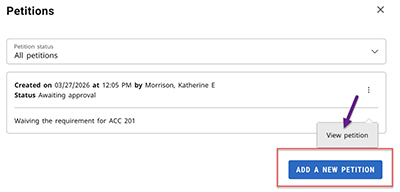
Fig 5 - Once the petition is saved, you will only have access to View the petition (see Fig 5).
- It will then go to the Registrar’s Queue for processing. If approved, the petition
exception/waiver will be noted in the appropriate Degree Audit block (see Fig 6).

Fig 6
For additional assistance, submit a ticket for support.