
Course Information: My Class Roster and My Courses
Audience: Faculty
Purpose: Use this guide to view your class roster, student information, and course details in RamPortal.
| Contents |
|---|
| Navigation |
| My Class Roster |
| My Courses |
Navigation
- Log in to RamPortal using your WCU Single Sign On (SSO).
- Locate the Faculty Center card on your home page.
- Click the Course Information dropdown and choose either My Class Roster or My Courses. See Fig 1.
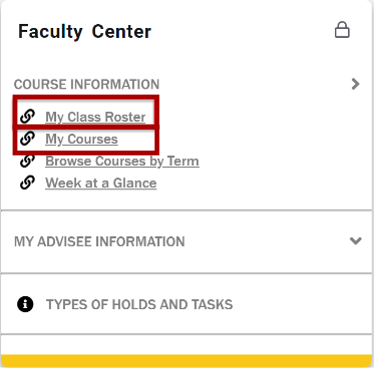
Fig 1 - Select a term from the dropdown.
My Class Roster
- Select a Subject. See Fig 2.
- The class roster opens with the Summary View of the Class List displayed.
- Select Detail View from the dropdown to see additional student information.
- Select the Export or Print icon to download or print a class list.
- Hover over a student’s name to see a preview with additional student information.
- Select View Profile to open a detailed view of the student’s profile.
- Select the Wait List tab to view the waitlisted students. See Fig 2.
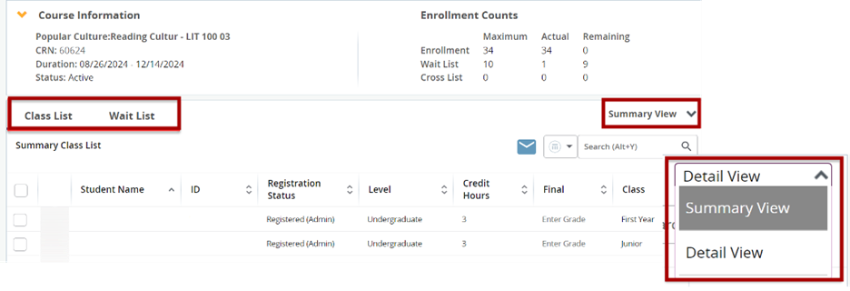
Fig 2 - Use the course dropdown (top left) to switch between courses. See Fig 3.
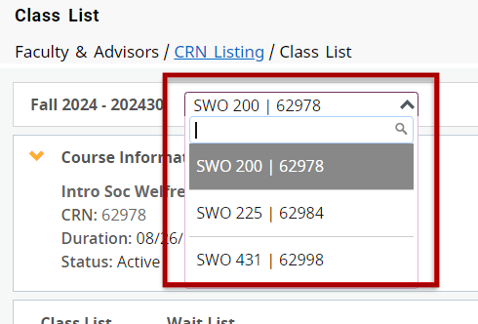
Fig 3
My Courses
- Follow the navigation steps above.
- Select a course.
- Course details display, including meeting times and enrolment information.
- Use the course dropdown to switch between courses.
For additional assistance, submit a ticket for support.